
Google Password Manager Makes Managing Online Passwords Easier
Google Password Manager can save login details, suggest stronger passwords and autofill credentials, helping users manage multiple accounts without remembering every password.

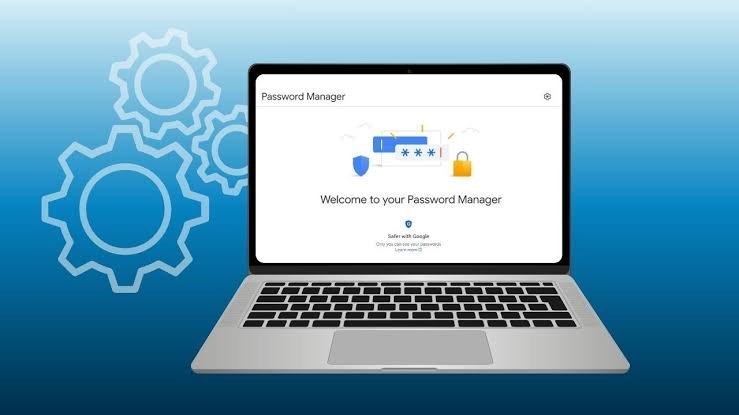
Remembering a different password for every online account is not easy. With email, shopping, social media, banking and other services all requiring separate logins, keeping track of them can quickly become confusing.
Google Password Manager offers a simpler way to handle those credentials. It can save passwords, suggest stronger combinations when creating new accounts and fill in stored login details when you return to a website.
The service is integrated with Google Chrome and Google Accounts. When password syncing is enabled, saved credentials can also be available on other supported devices signed into the same Google Account.
How to access Google Password Manager on Android
Android users can manage their saved passwords directly through Chrome. Open Google Chrome and tap the three dot menu in the top right corner.


Go to Settings and select Google Password Manager. The next screen shows passwords that have already been saved. Users can open entries to view, edit or delete stored credentials after completing the required device verification.
A new login can also be added manually. Select the option to add a password and enter the website address, username and password before saving the information.
Saving a password while browsing
Chrome can normally ask whether you want to save your login details when you create an account or sign in to a website. Selecting Save stores the credentials in Google Password Manager.
The next time you visit the same website, Chrome can offer the saved username and password during the login process. Depending on the device and settings, you may need to confirm your identity using a fingerprint, screen lock or another form of device authentication.
If Chrome does not offer to save passwords, users can check the Google Password Manager settings and enable the option that allows Chrome to offer password saving.
Chrome can create stronger passwords too
Creating a new password for every service can be another tedious part of signing up. Chrome can help by suggesting a strong password when a website asks you to create one.
During registration, users can tap the password field and look for the strong password suggestion. If accepted, the generated credential can be saved to Google Password Manager.
Using a different password for each important account is generally safer than reusing the same password across multiple services. A password manager makes that approach more practical because users do not have to memorise every combination themselves.
Where to find saved passwords
Saved credentials can be accessed through Google Password Manager in Chrome. Users can also manage passwords associated with their Google Account through the official Google Password Manager website at passwords.google.com.
Before revealing or changing a stored password, Google may require the user to verify their identity through the device or account security process.
From the password manager, users can update outdated credentials or remove passwords they no longer need. Keeping the list organised and deleting old accounts or unused credentials can also make password management easier over time.