
Master Windows Like a Pro With 8 Smart Screenshot and Screen Recording Tricks
Most Windows users still rely on basic Print Screen, but laptops and PCs offer powerful hidden shortcuts for screenshots, selective capture, scrolling pages, and even screen recording that improve productivity instantly.


Taking screenshots on a Windows laptop or PC is something almost everyone does, but very few people actually explore all the available methods. Most users still depend only on the Print Screen key, unaware that Windows offers multiple built in options for capturing, saving, editing and even recording the screen in smarter ways.
In daily use, screenshots become essential for many reasons. It could be saving an important document, capturing an online payment confirmation, sharing a chat, or reporting an error. While the task looks simple, Windows has quietly packed several tools that make it far more flexible and powerful than most people realize.
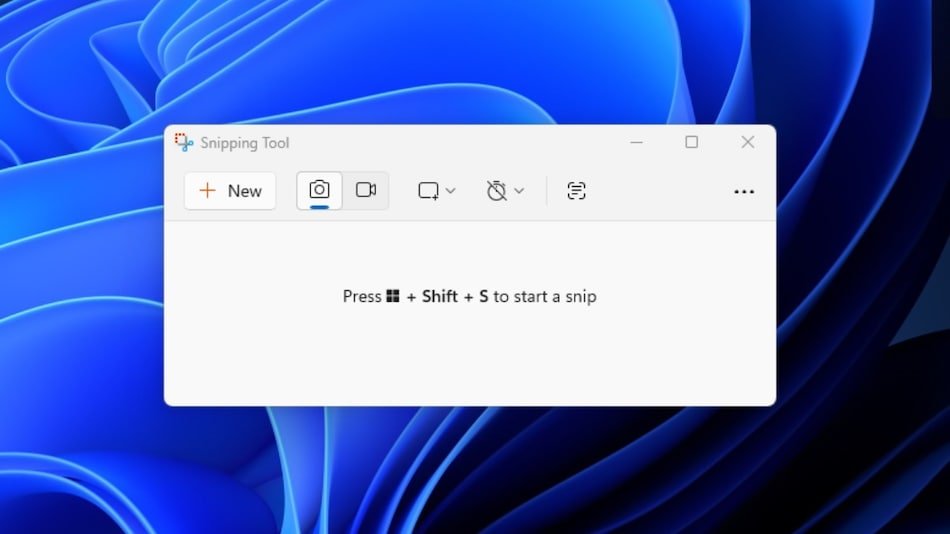
One of the most useful combinations is Windows plus Shift plus S, which instantly activates the screen snipping tool. This allows users to select only a portion of the screen instead of capturing everything. You can draw a rectangle, select a free shape, capture a single window or even take a full screen snip. The image is copied directly to the clipboard for quick pasting anywhere.
For those who prefer speed, the classic PrtScn key still works for capturing the full screen. The screenshot is copied to the clipboard and can be pasted into apps like Paint, Word or messaging platforms using Ctrl plus V. On some keyboards, especially laptops, users may need to press Fn along with PrtScn depending on the layout.


If saving screenshots automatically is more convenient, Windows plus PrtScn is the shortcut to remember. The screen briefly dims and the image is saved directly in the Pictures folder under Screenshots. This is especially helpful for users who take frequent captures during work or study sessions.
Another handy trick is Alt plus PrtScn, which captures only the active window instead of the entire screen. This is useful when multiple apps are open and you want to focus on just one window, such as a browser tab or software application.
Windows also includes the Snipping Tool, a built in app that offers more control over screenshots. Users can search it from the Start menu and access options like delayed capture, rectangular selection, window capture and full screen mode. It also allows quick editing features such as cropping, highlighting and saving.
For those who need more than still images, Windows offers screen recording through the Xbox Game Bar. By pressing Windows plus G, users can open the recording panel, start capturing video, or even enable microphone audio. Recorded files are automatically saved in the Videos folder under Captures.
Printing content directly from the screen is also simple using Ctrl plus P, which works across most apps including browsers, documents and images. Users can choose the printer, adjust settings and print instantly without extra steps.
There are times when screenshots may not work properly due to simple issues like disabled Snipping Tool, keyboard driver problems, or incorrect Fn key settings. In such cases, restarting the system or checking keyboard configuration usually resolves the issue.
With these built in shortcuts and tools, Windows turns a simple task like taking a screenshot into a powerful productivity feature. Once users become familiar with them, everyday tasks become faster, smoother and far more efficient.