iPhone Name Recognition Can Alert You When Someone Calls Your Name
iPhone users on iOS 26 can teach their devices to recognize their names and receive alerts when someone calls them, including situations where background noise or distractions make hearing difficult.

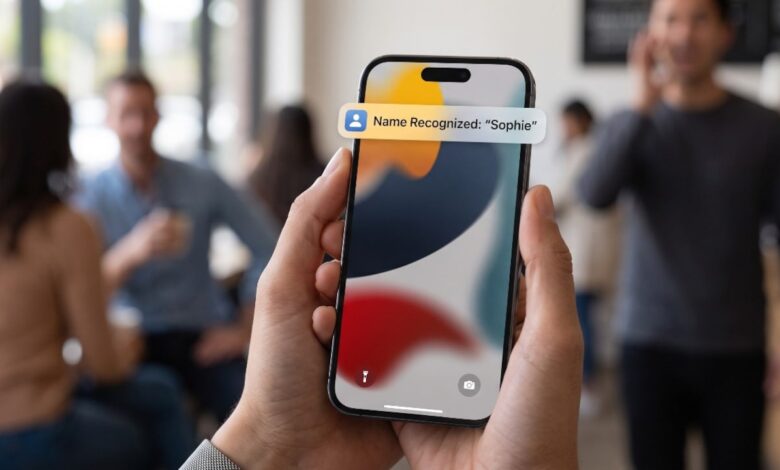
Missing your name being called could soon become less of a problem for iPhone users. Apple has introduced a Name Recognition feature with iOS 26 that can listen for a users name and send an alert when it detects the name being spoken nearby.
The feature is designed for situations where someone may not immediately notice that they are being called. For example, a person could be wearing headphones, concentrating on another task or simply be in a noisy environment where a voice is difficult to hear.
Instead of relying only on the users exact name, the feature can be trained to recognize more than one name. This can be useful for people who are regularly addressed by a nickname or by different versions of their name.
Apple allows users to provide recordings so the iPhone can learn the names they want it to recognize. Users can record themselves or have another person say the name during the setup process. Once the setup is completed, the iPhone can use the recorded information to identify the selected names.


Setting up Name Recognition does not require a complicated process. Users first need to open the Settings application on their iPhone. From there, they can enter Accessibility and select Sound and Name Recognition.
The next step is to open Name Recognition and choose the option to set it up. The iPhone then provides instructions on the screen, which users need to follow to complete the process.
Once the feature has been configured, the device can listen for the selected name and provide a notification when it detects a match. The feature is particularly aimed at helping users notice when someone is trying to get their attention.
Apple has also included an option for people who are known by more than one name. Instead of limiting the feature to a single name, users can add additional names through the same settings section.
To add another name, users need to open Settings, go to Accessibility and then select Sound and Name Recognition. After opening Name Recognition, they can tap Add Name and follow the instructions shown on the screen.
This multiple name option could be useful in everyday situations. Someone may use a shortened version of their name with friends, while family members or colleagues may use a different name when speaking to them. Adding those variations gives the iPhone more information about which names it should recognize.
Apple has also provided a convenient way to control the feature. Name Recognition can be added to Control Center, allowing users to turn it on or off without repeatedly going through the full Settings menu.
The feature is available with iOS 26 and later versions, although Apple notes that Name Recognition supports only selected languages. Availability can therefore depend on the language configured and supported on the users iPhone.
There is also an important limitation that users should keep in mind. Apple advises against depending on Name Recognition in situations where missing a notification could result in injury, harm or an emergency. Like other device based recognition features, it should be treated as a convenience rather than a guaranteed safety system.
The technology is aimed more at improving awareness during everyday activities than replacing normal attention. If a person is unable to hear their name because they are busy or distracted, the notification can provide an additional way to notice that someone is trying to contact them.
The introduction of Name Recognition also shows how accessibility features are becoming more closely connected with everyday smartphone functions. Rather than being limited to traditional accessibility needs, features such as this can be useful to a wider range of people depending on their surroundings and daily routines.
For iPhone owners using iOS 26 or later, setting up Name Recognition can be done directly from the Accessibility section of Settings. Users can also add multiple names and place the feature in Control Center for quicker access.
Before relying on it regularly, users should check whether their preferred language is supported and understand its limitations. The feature can offer an extra layer of awareness, but it should not be treated as a replacement for hearing important warnings or emergency notifications.