
How to Enable Advanced Protection on Your Android Phone to Stay Safe from Hackers
New security feature helps Android users block harmful websites detect suspicious links and protect personal data by offering a centralized control system across apps for stronger digital safety

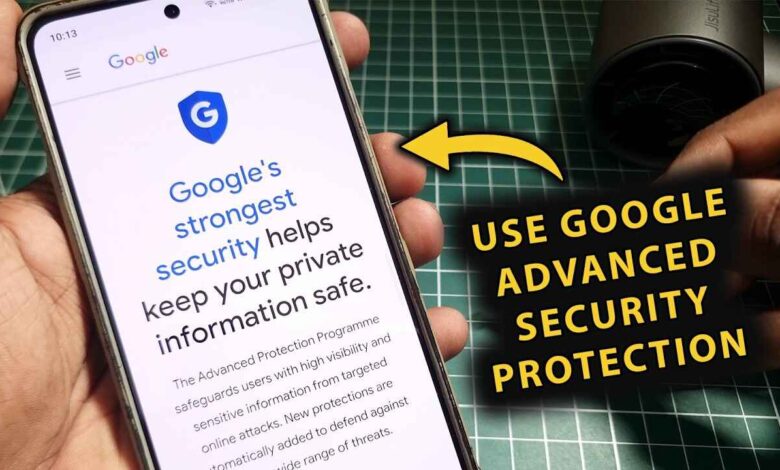
As cyber threats continue to rise, smartphone users are being urged to strengthen their device security, especially on Android platforms. Experts warn that hackers are constantly looking for ways to access personal data through unsafe links, malicious websites, and vulnerable apps, making it essential to activate built in protection tools.
One such feature gaining attention is Advanced Protection, introduced by Google in mid 2025. This tool acts as a centralized security layer across key apps like Chrome, Messages, and Phone, helping users detect and block potentially harmful activity before it causes damage.
The feature is designed to identify risky websites that have already been flagged in security databases. If a user tries to access such a link, the system either blocks it or displays a warning. This prevents unauthorized attempts to steal sensitive information such as passwords, banking details, or personal data.
Unlike traditional antivirus tools, Advanced Protection works quietly in the background while integrating directly with the Android system. It simplifies security by offering a single control point where users can manage protection settings without navigating multiple apps.


Turning on this feature is relatively straightforward. Users need to open the settings menu on their Android device and head to the security and privacy section. From there, the Advanced Protection option can be found under additional settings. Once selected, users can enable device security and follow on screen instructions, which may include restarting the phone to complete activation.
There is also an alternative route through Google account settings. By opening the Google app and accessing the all services section, users can navigate to personal and device safety, where the Advanced Protection option is available. This provides flexibility for those who prefer managing security through their account rather than system settings.
If needed, the feature can also be turned off through the same menus. However, disabling it requires authentication through biometric verification or a device PIN, ensuring that only the rightful user can make such changes. In some cases, the phone may restart again after deactivation.
With increasing dependence on smartphones for banking, communication, and work, the risks associated with cyber attacks have grown significantly. Features like Advanced Protection offer an added layer of defense, helping users stay one step ahead of potential threats without requiring advanced technical knowledge.
For everyday users, enabling this feature could be a simple yet effective step toward safeguarding their digital life in an increasingly connected world.